
Submitting a written assignment #
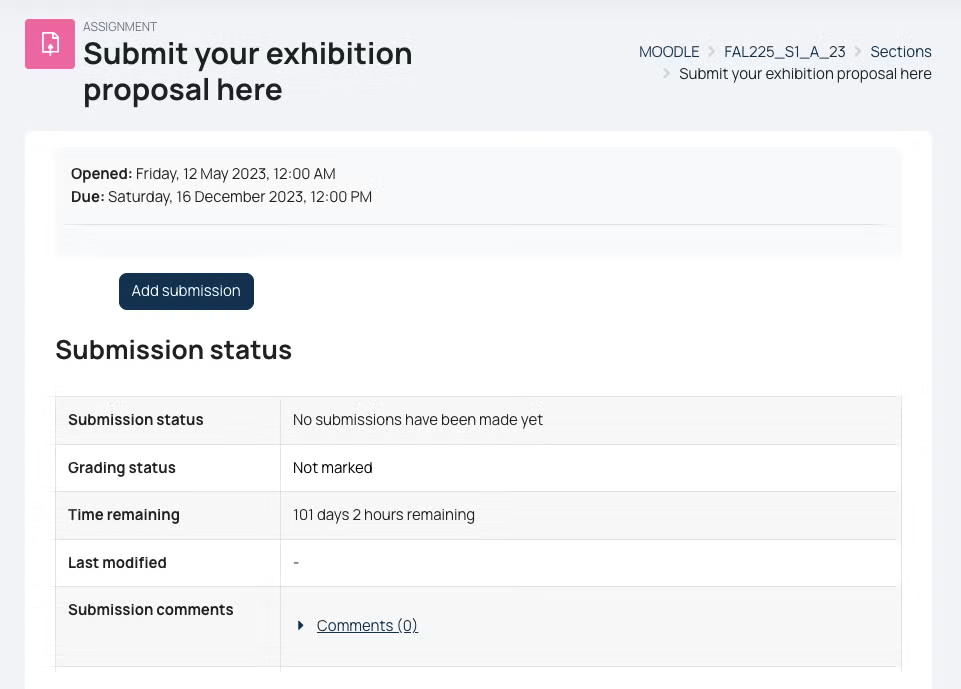
Navigate to the module’s Moodle page and select the assignment submission link. It should look something like the image below.
(If you are unable to locate the submission link, please contact your tutor for guidance).

The submission screen will show you additional details, including; submission status, time remaining until the deadline, and the last time the submission was modified (see image below). To make a submission, select Add submission.
Please note that grades and feedback will not be displayed in Moodle. For these, you will need to check ChiView.
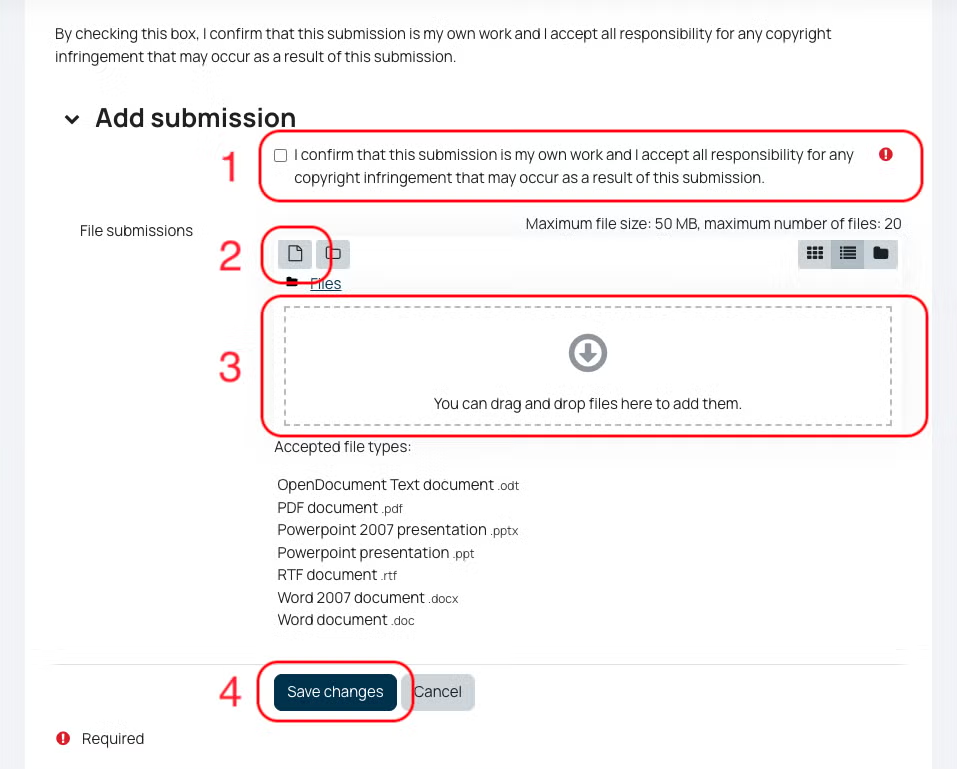
- You will need to tick to confirm that the submission is all your own and that you accept all responsibility for any copyright infringement that may occur as a result
- Select the file icon to:
- Navigate to a file which is on your computer
- Navigate to a file which is saved in your University OneDrive account
- Alternatively, you can simply drag and drop your file in to this submission box
- Select Save changes to confirm the submission.
Important: When adding a submission, please include your student number in the file title
Checking your submission #
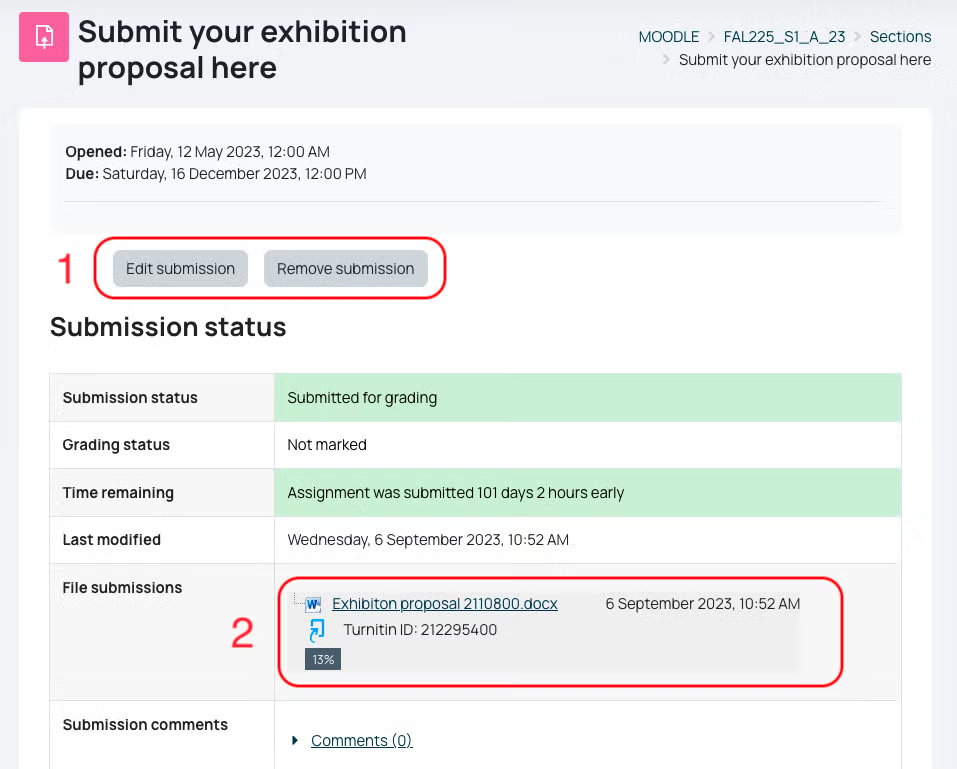
- You can choose to edit or remove your submission
- Edit: you can add additional files, update the title of a current submission, remove and download individual submissions
- Remove: you can delete all submissions. Please note that if you do not have submitted documents by the due date, you may be marked as “non-submission”.
- Please click on your submitted document to check that it is all correct
- You can check the Turnitin originality score by clicking on the % number
- For more information on Turnitin, please see our guide: Turnitin for students
Submitting a video or multimedia assignment #
- For guidance on submitting a video or multimedia assignment, please check this guide: Video assignments