Audio can enhance your presentation by adding narration, music, or sound effects. It helps engage your audience, explain complex points, and create a more dynamic experience. You can insert audio files, record your own narration, or add background music to slides. PowerPoint allows you to export video from a presentation. This is useful if you want to record the presentation in parts, rather than in one go.
1. Inserting an Audio File
Open your PowerPoint presentation.
Go to the Insert tab on the Ribbon.
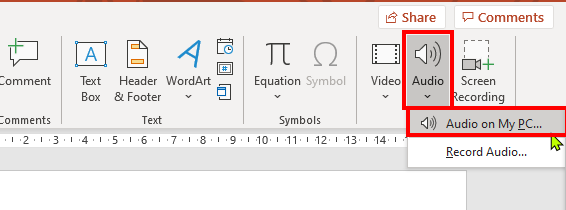
In the Media group, click Audio, then select Audio on My PC.
Browse and select the audio file you want to use (supported formats include .mp3, .wav).
Click Insert. An audio icon will appear on the slide.
Picture
2. Recording Audio
Go to the Insert tab.
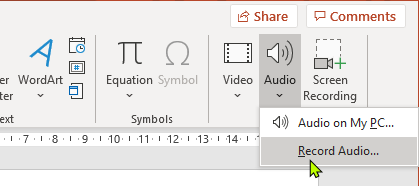
Click Audio, then select Record Audio.
In the dialog box:
Enter a name for your recording.
Click Record and speak clearly into your microphone.
Click Stop when finished, then OK to insert the recording.
The audio icon will appear on the slide.
Picture
3. Playback Options
Select the audio icon on the slide.
Go to the Playback tab on the Ribbon.
Adjust settings such as:
Start: Automatically or On Click.
Play Across Slides: For background music throughout the presentation.
Loop Until Stopped: Repeat audio until manually stopped.
Hide During Show: Hide the audio icon during the slideshow.
Picture
4. Trimming and Editing Audio
Use the Trim Audio option in the Playback tab to remove unwanted sections.
Adjust volume and fade in/out effects for smooth transitions.
Best Practices
Keep audio clear and relevant to your content.
Test playback before presenting to ensure sound quality.
Avoid overly long audio clips that may distract from your message.