Exporting your document as a PDF ensures that the formatting remains consistent across all devices and platforms. PDFs are ideal for sharing final versions of documents because they are widely compatible, secure, and prevent accidental editing.
1. Export a Document as PDF
Open your Word, Excel, or PowerPoint document.
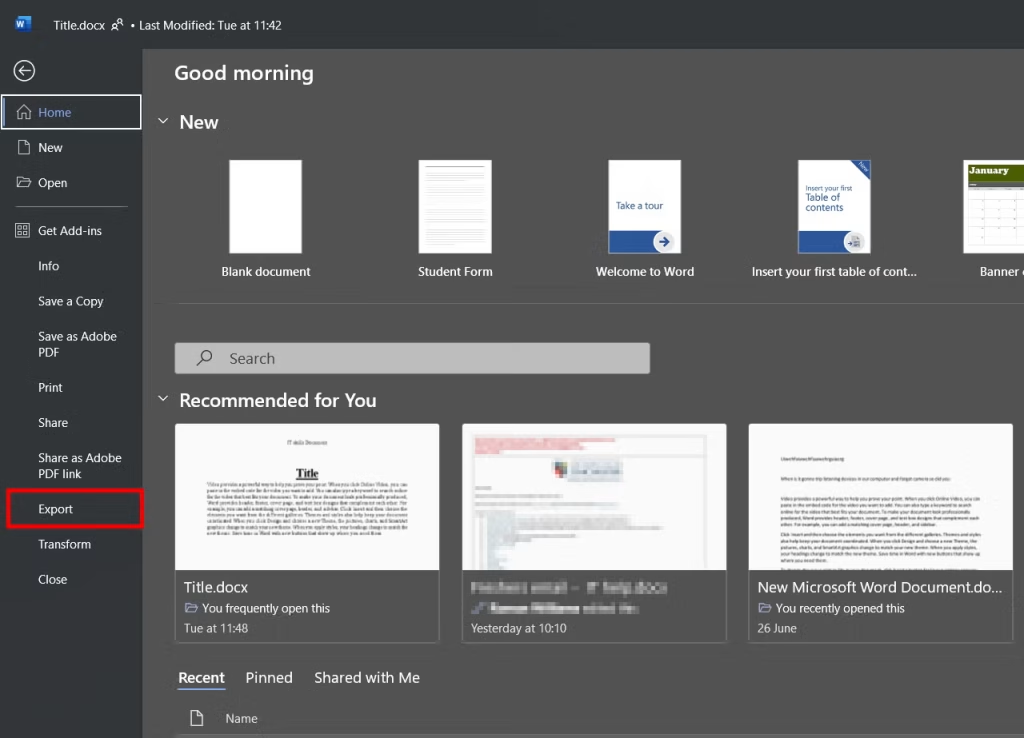
Go to the File tab.
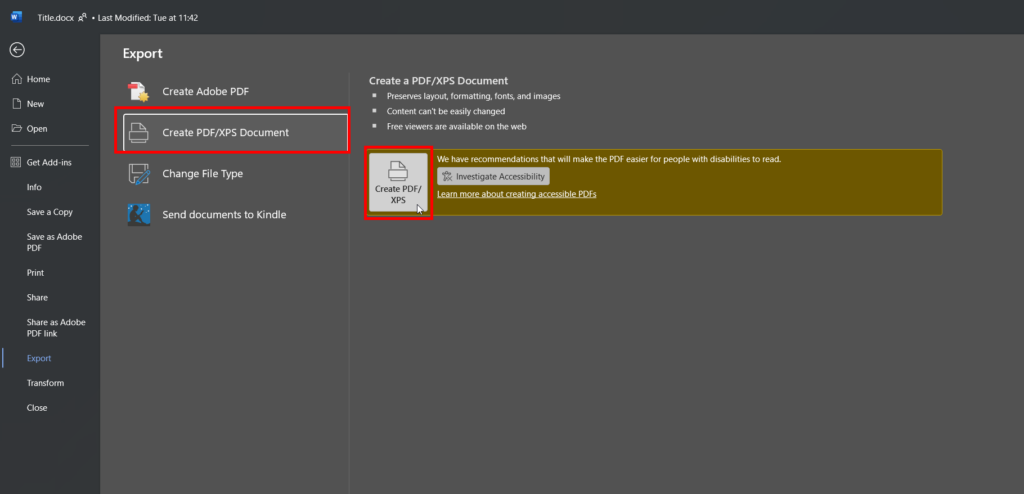
Click Export.
Choose the location where you want to save the file.
(if you use ‘Save as’ instead of ‘Export) In the Save as type drop-down menu, select PDF (*.pdf).
Click Save.
1. Picture
2. Picture
2. Adjust PDF Options
In the Save As dialog box, click Options.
Configure settings such as:
Page Range: Export the entire document or specific pages.
Publish Options: Include document properties or tags for accessibility.
Optimize for:
Standard (Publishing Online and Printing) for high quality.
Minimum Size (Publishing Online) for smaller file size.
Best Practices
Always review your document before exporting to ensure formatting is correct.
Use Standard optimization for print-quality PDFs.
For accessibility, include document properties and tags when exporting.