
What Is Text-to-Columns and Why Use It?
The Text-to-Columns feature in Excel allows you to split data in a single column into multiple columns based on a delimiter (such as commas, spaces, or tabs) or a fixed width. This is useful when working with imported data, lists, or combined fields that need to be separated for analysis or formatting.
1. Prepare Your Data
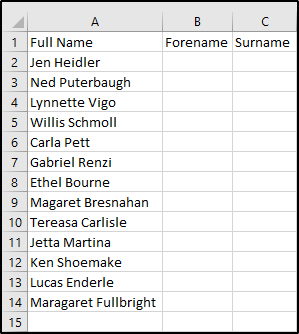
- Ensure the column you want to split contains consistent data.
- Insert blank columns to the right of your data to avoid overwriting existing content.
Picture
2. Open the Text-to-Columns Wizard
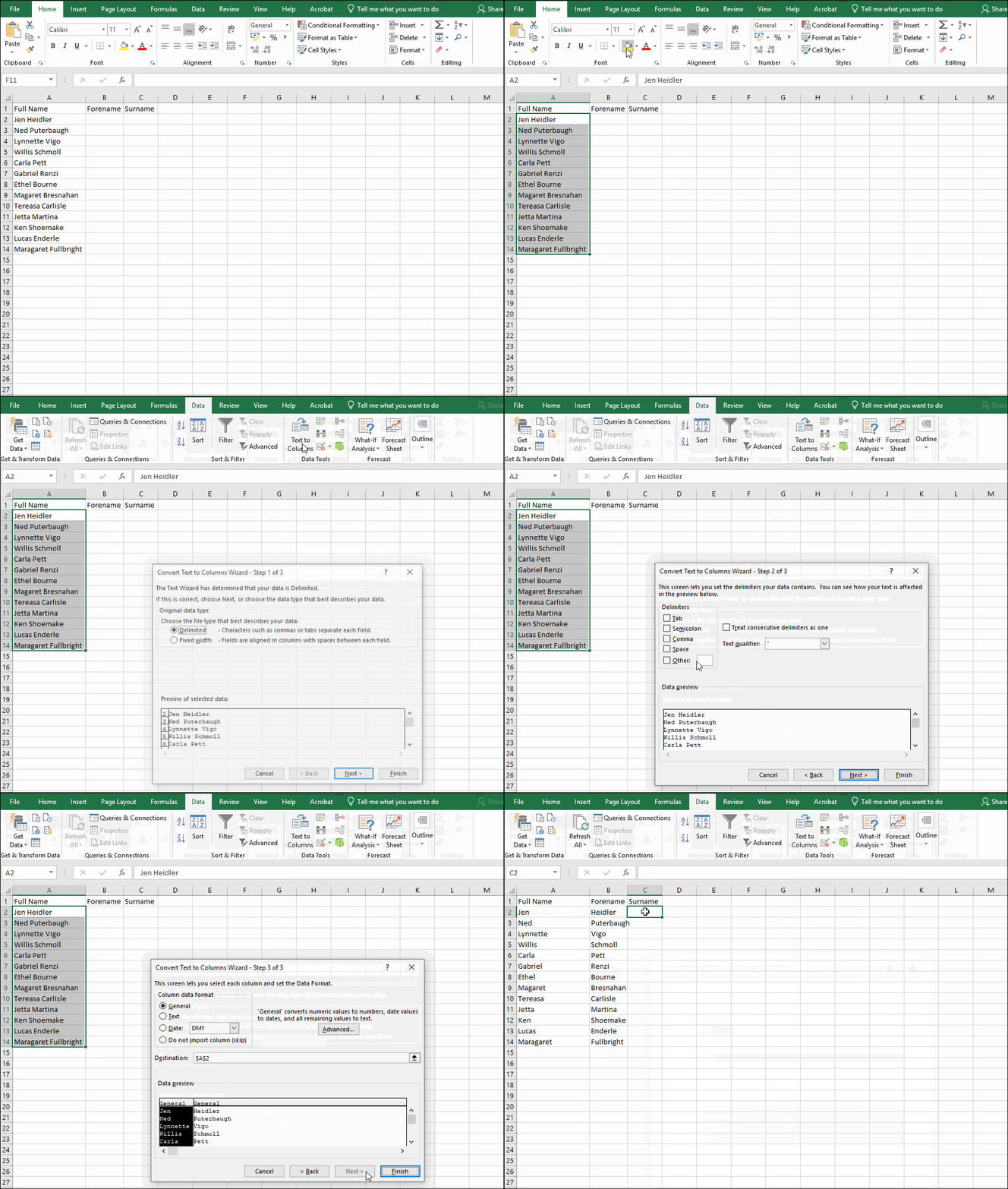
- Select the column containing the text you want to split.
- Go to the Data tab on the Ribbon.
- In the Data Tools group, click Text to Columns.
Picture
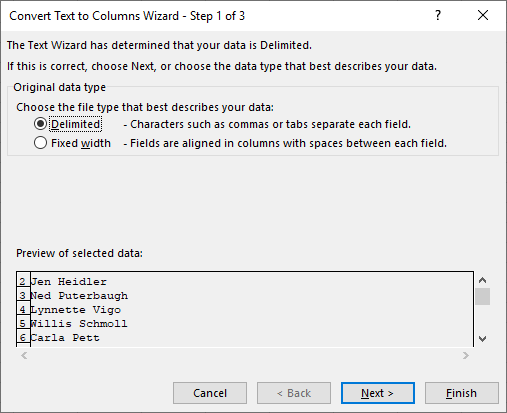
3. Choose the Split Method
- Delimited: Use this option if your data is separated by characters such as commas, spaces, or tabs.
- Fixed Width: Use this option if your data has a consistent spacing pattern.
Click Next to continue.
Picture
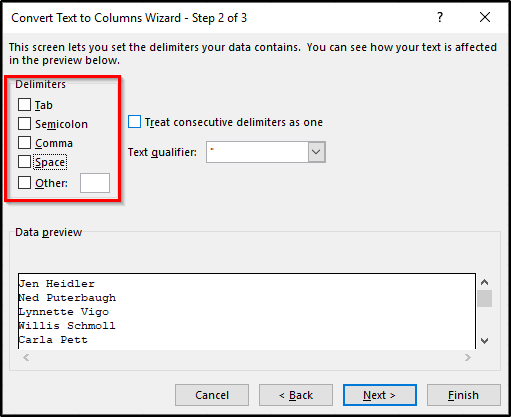
4. Set Delimiters or Column Breaks
- For Delimited:
- Select the delimiter(s) that apply (e.g., Comma, Space, Tab).
- Preview the split in the Data Preview window.
- For Fixed Width:
- Click to set column breaks in the preview.
- Adjust as needed.
Click Next.
Picture
5. Format the Columns
- Choose a data format for each column (General, Text, Date).
- Click Finish to apply the changes.
Picture
Best Practices
- Always check the Data Preview before finishing to avoid incorrect splits.
- If your data includes mixed delimiters, clean it first for accuracy.
- Consider using Excel functions like TEXTSPLIT (available in newer versions) for dynamic splitting.