What is a Cell Reference?
A basic cell reference (relative) is the way Excel identifies a specific cell or range of cells in a worksheet. It tells Excel where to find the data you want to use in a formula. For example, A1 refers to the cell in column A, row 1. Cell references can be:
- Relative (change when copied to another location)
- Absolute (stay fixed no matter where the formula is moved)
- Or a mix of both (partially locked).
Relative and Absolute – What does it mean?
Cell references are used in most Excel functions, and they behave differently when you use the fill handle to copy formulas. When you select a cell (by left-clicking), you’ll see a small green square in the bottom-right corner of the cell. This is the fill handle. You can click and drag it in any direction to copy the formula or value. Depending on if the cell reference is relative or absolute, it will ‘move’ (relative) with the fill handle or be ‘locked’ (absolute) and stay put.
(For other uses of the fill handle, see the separate guide here)
Relative Cell References
A relative reference changes when you copy it to another cell. For example:
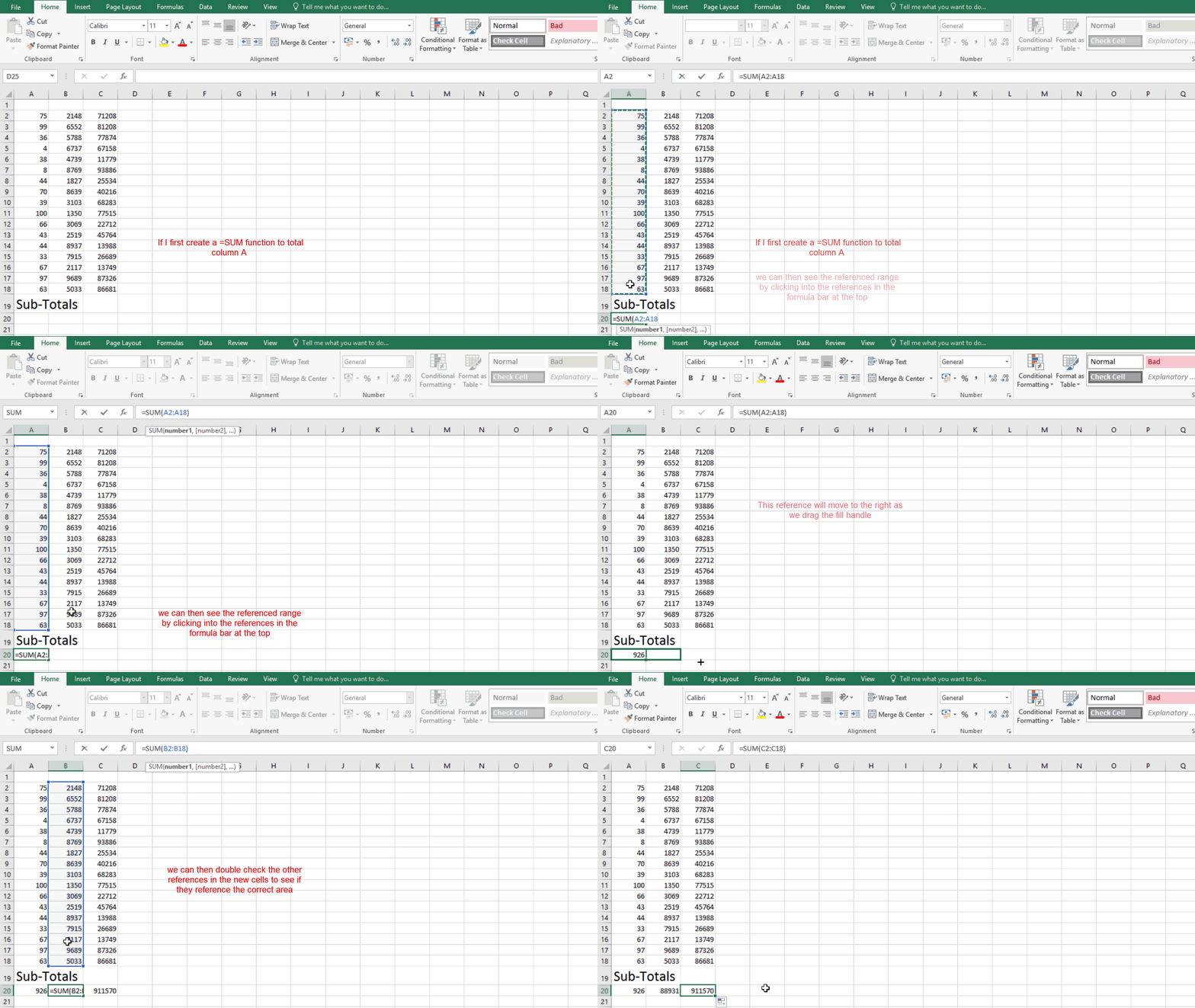
=SUM(A1:A20)
If you drag the fill handle to the right by two cells, the formula updates relative to its new position:
=SUM(B1:B20)
then
=SUM(C1:C20)
This continues as far as you drag the fill handle.
Absolute Cell References
An absolute reference stays fixed when you copy it. This is useful when you always want to refer to the same cell, regardless of where the formula is moved.
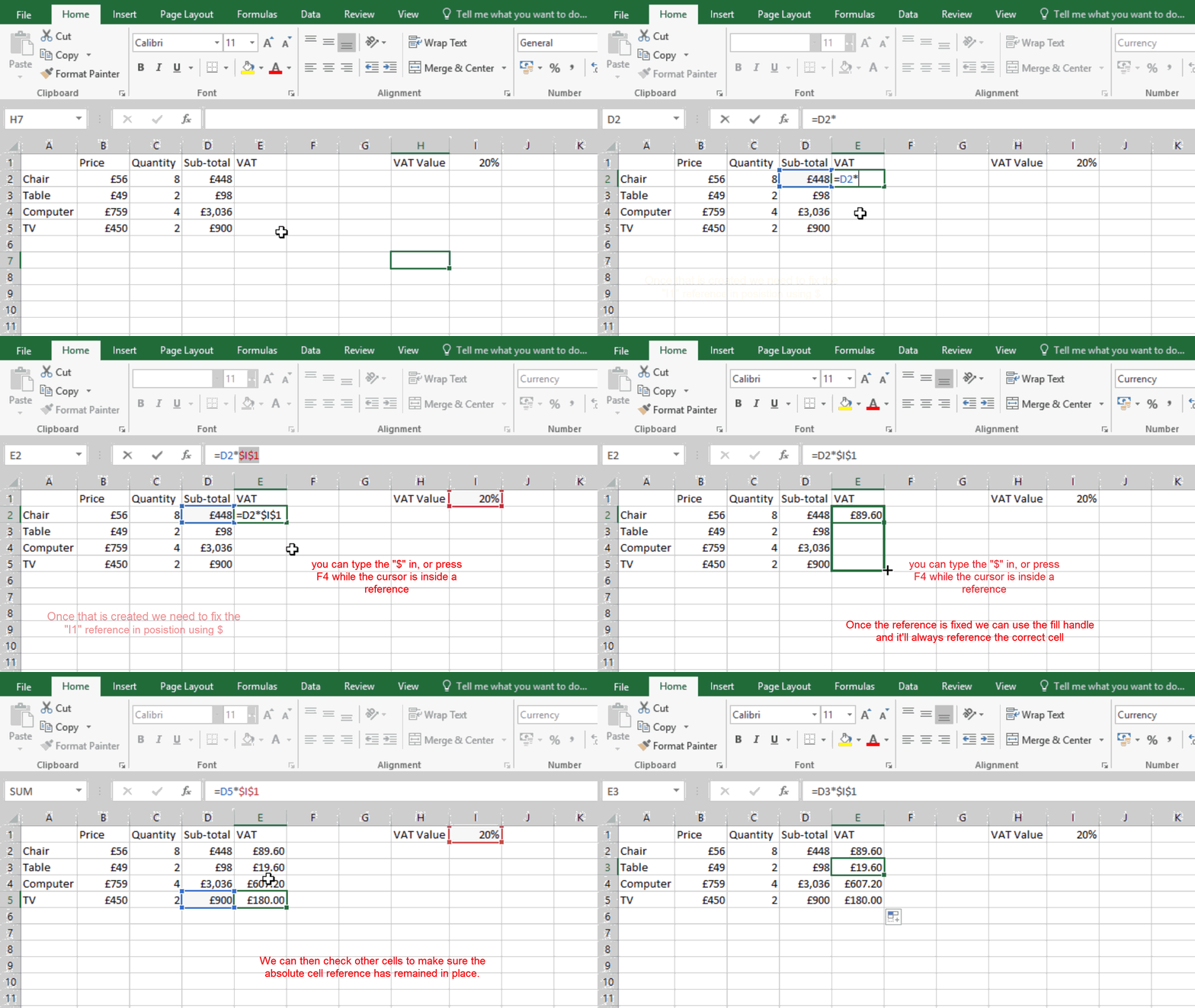
For example, imagine you’re calculating VAT (20%) for multiple items. Instead of typing 20% in every row, you can enter 20% in a single cell (say A20) and reference it in your formula.
A standard reference looks like this:
A20
To make it absolute, add dollar signs:
$A$20
$Alocks the column (so it won’t change when dragged left or right).$20locks the row (so it won’t change when dragged up or down).
You can also lock only one part:
$A20→ locks the column only.A$20→ locks the row only.
In most cases, when you want the reference to stay completely fixed, use:
$A$20