Layouts and themes help create visually consistent and professional presentations. Layouts control the arrangement of text, images, and other elements on a slide, while themes apply coordinated colours, fonts, and effects across all slides. Adjusting slide size ensures your presentation fits the display or print format you need, such as widescreen or standard.
1. Choosing a Slide Layout
Open your presentation in PowerPoint.
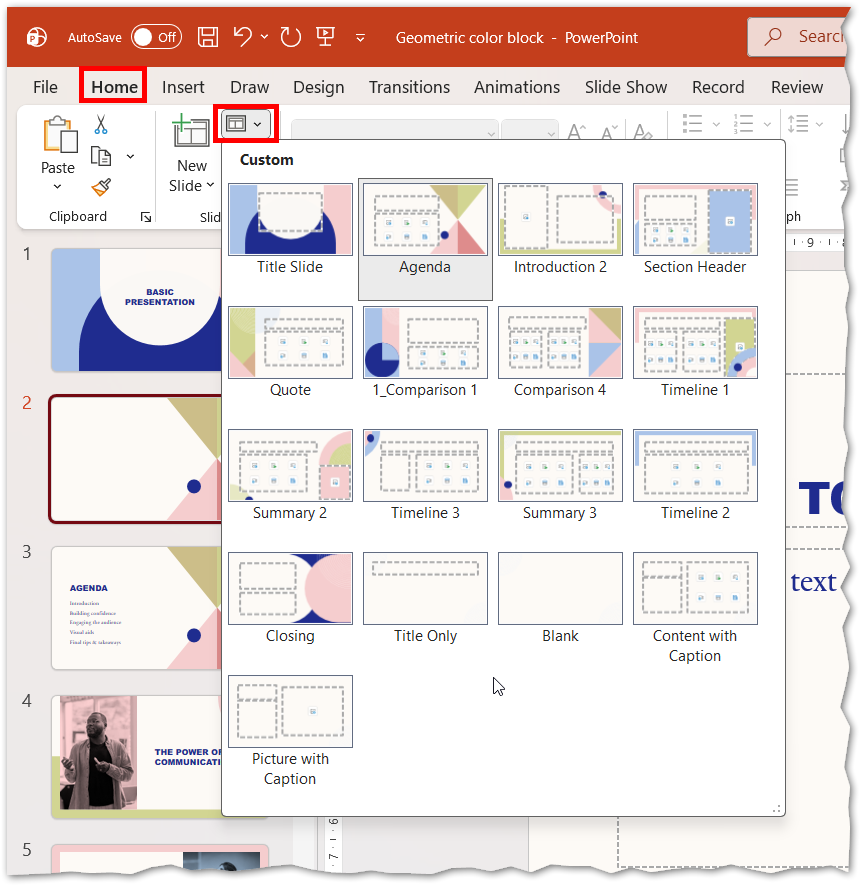
Go to the Home tab.
In the Slides group, click Layout.
Select from predefined layouts such as:
Title Slide
Title and Content
Two Content
Section Header
Apply the layout to the current slide or multiple slides as needed.
Picture
2. Applying a Design Theme
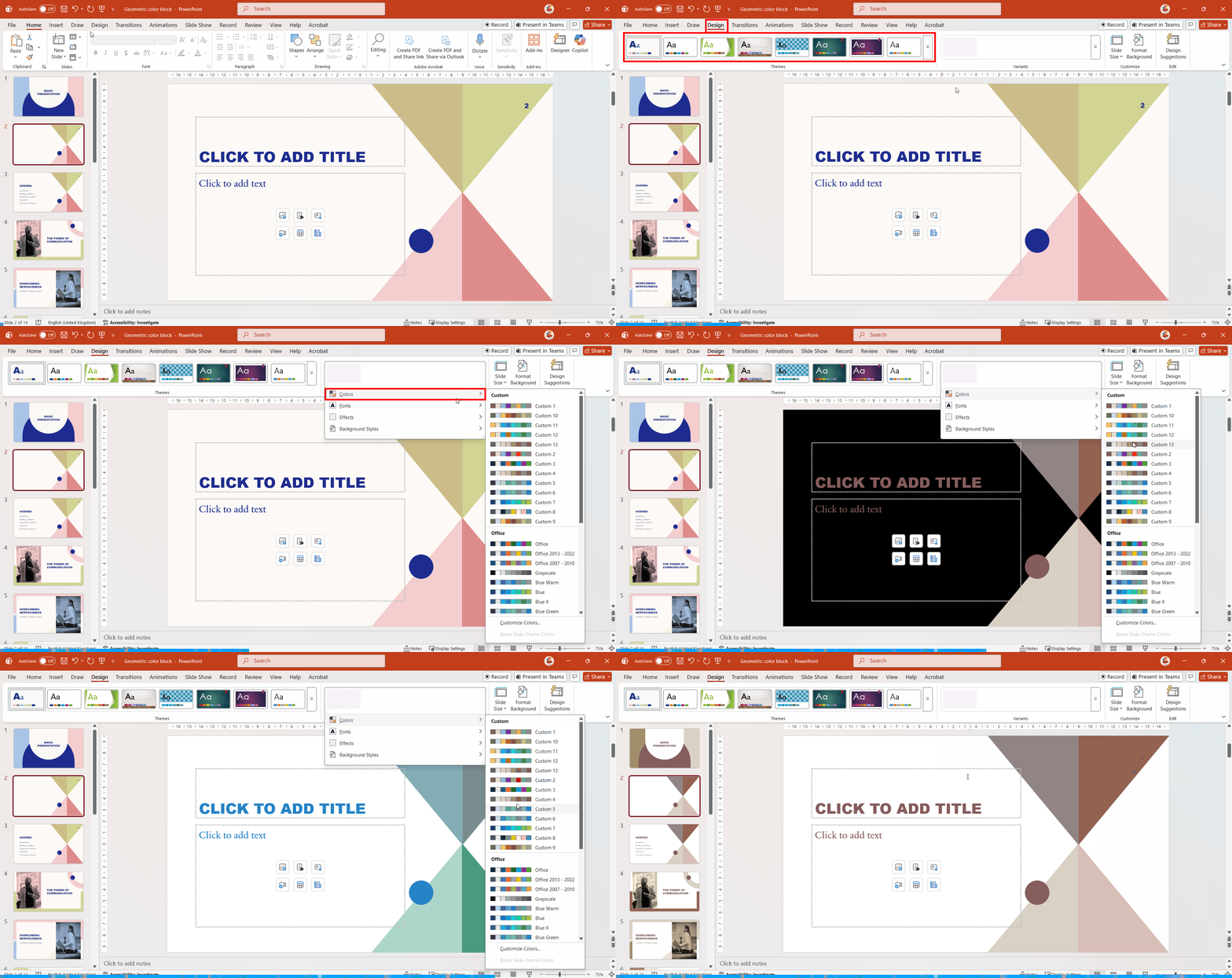
Go to the Design tab on the Ribbon.
In the Themes group, browse available themes.
Click a theme to apply it to your entire presentation.
Use Variants to adjust colour schemes, styles or Fonts within the selected theme.
Picture
3. Customizing Theme Elements
Change fonts, colors, and effects by selecting Customize options in the Design tab.
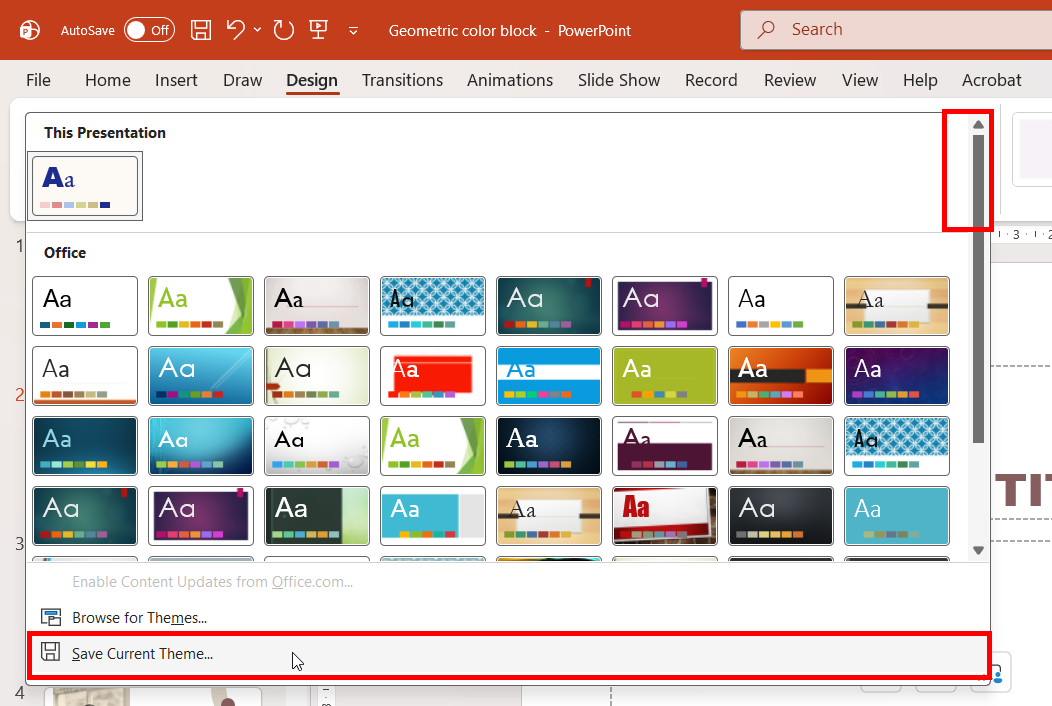
Save your custom theme for future use by clicking Save Current Theme.
Picture
4. Changing Slide Size
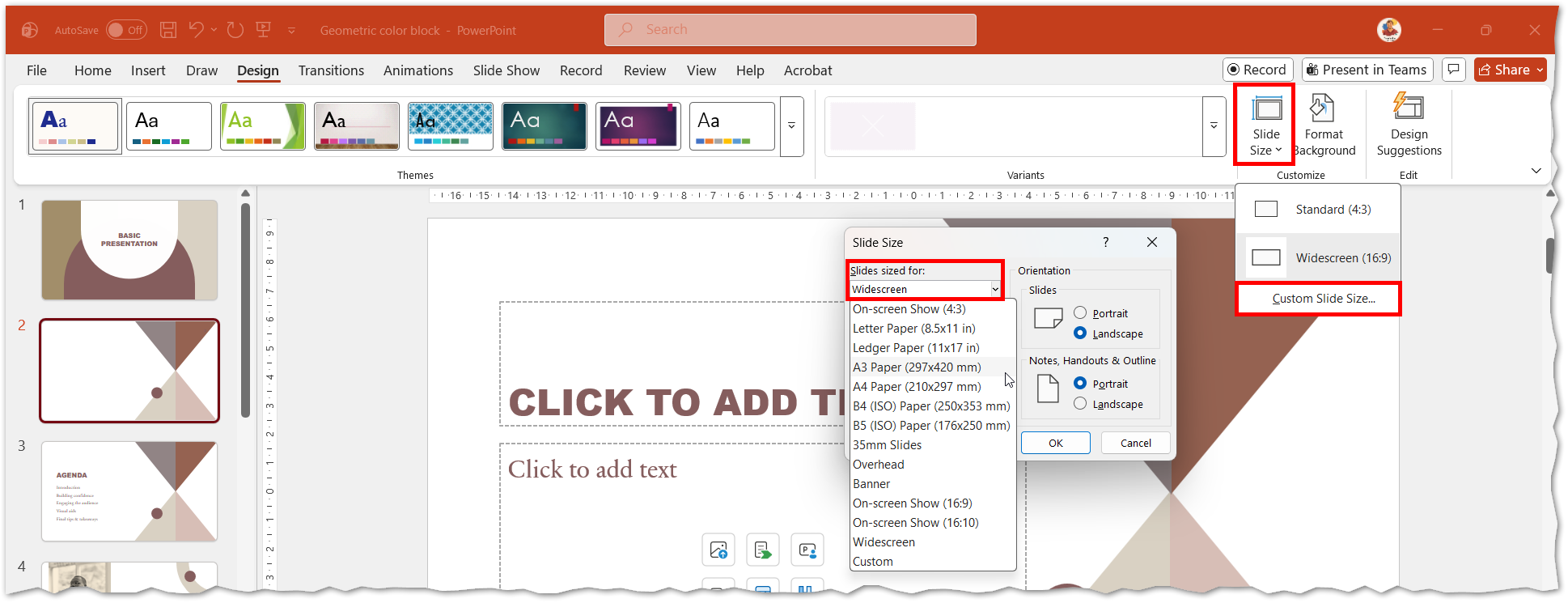
Go to the Design tab.
In the Customize group, click Slide Size.
Choose:
Standard (4:3) for older screens or printed handouts.
Widescreen (16:9) for modern displays.
For custom dimensions, select Custom Slide Size and enter your preferred width and height.
When prompted, choose Maximize (to fill the slide) or Ensure Fit (to prevent content from being cut off).
Picture
Best Practices
Use consistent layouts for a professional look.
Apply themes early to maintain design consistency.
Choose slide size based on your display or print requirements before adding content.