Media Students and Staff have access to additional storage, depending on the module and/or projects they are working on.
It can be found at the following locations:
From Windows:
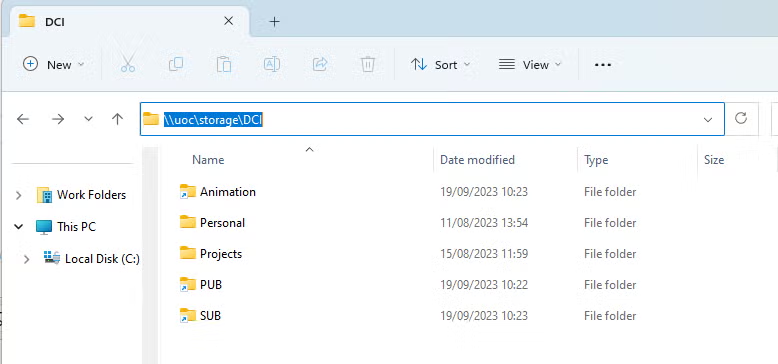
Opening “This PC” and selecting “DCI Storage”. If for any reason this option is not present, it can be manually accessed by going to:
\\uoc\storage\DCI
From macOS:
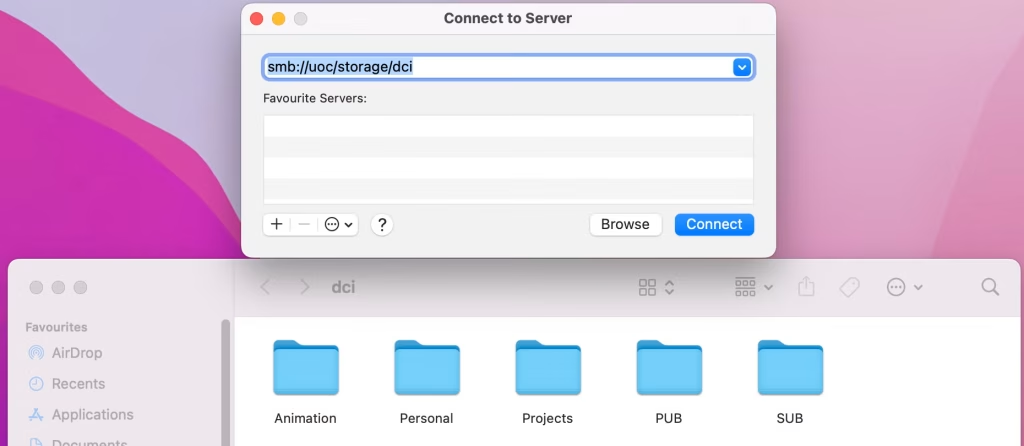
A drive called “DCI” should automatically be mounted on your desktop. If not, it can be manually accessed by going to:
smb://uoc/storage/DCI
The folders you’ll have access to will depend on what modules you’re enrolled in, and what projects you may have been given access to.
The main 5 folders are:
Animation*
The file share used by the Animations courses
Personal
Personal Workspaces for individual work
Projects
Group Workspaces for project work
PUB*
The Media Public drive for common file storage
SUB*
The Media Submissions drive
*These folders are added for convenience and still remain accessible via their historical drive mappings and/or mount points.
FAQ
What if need to use a drive letter?
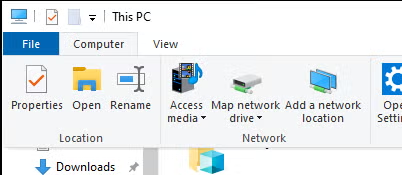
Some projects may have been set up to use a drive letter for accessing the shared storage, especially if they were created on previous storage. If you need to use a drive letter for your project in Windows, you can manually create one by:
Open File Explorer
Select “Computer” in the ribbon, and then select “Map Network Drive”
Enter the location of your project e.g. \\uoc\storage\DCI\Projects\Group_Project_1