A text box in PowerPoint is a container that allows you to place text anywhere on a slide independently of the default layout. Text boxes are useful for adding captions, labels, or additional notes without altering the main slide structure. They provide flexibility for custom designs and help emphasize key information.
1. Insert a Text Box
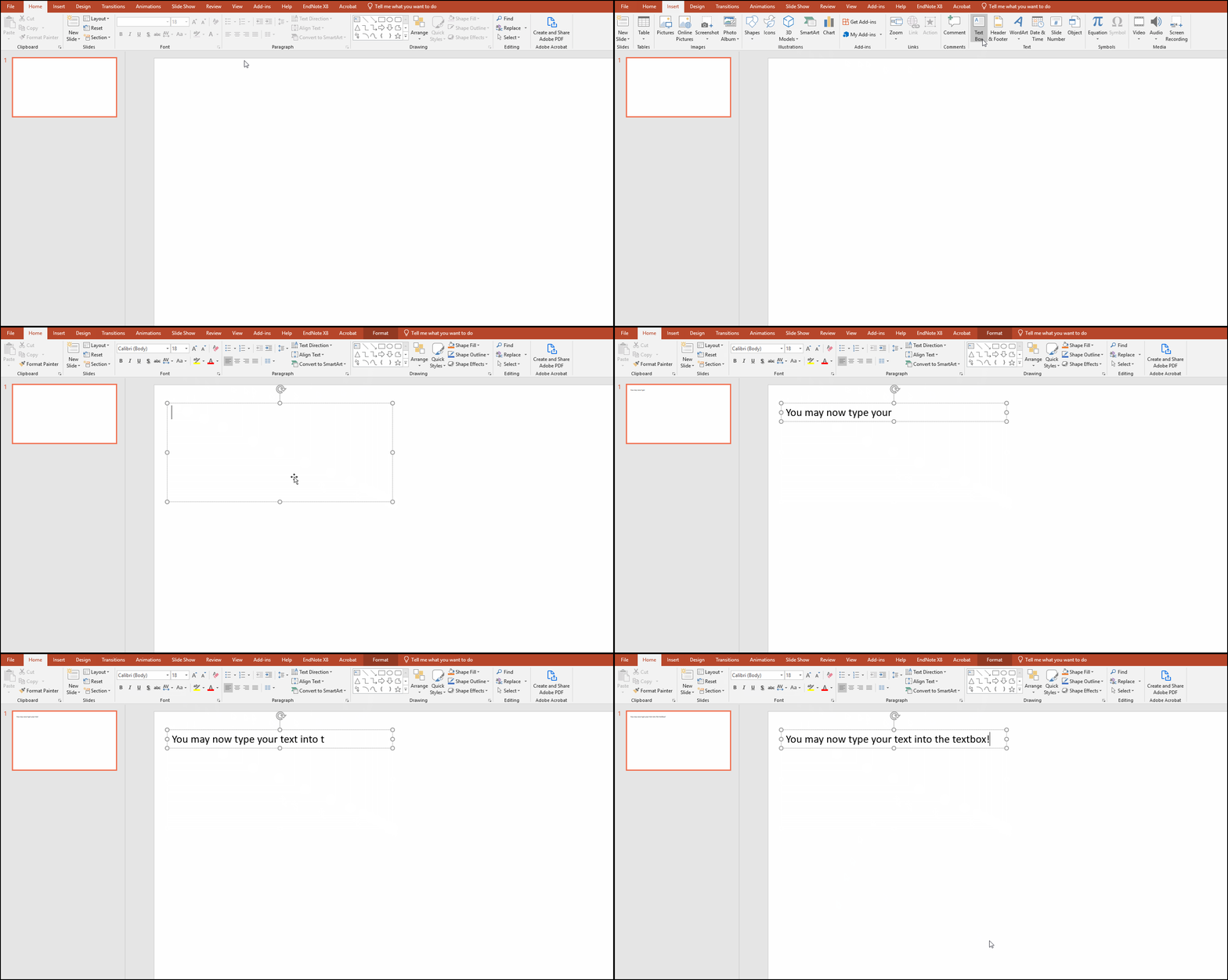
Open your PowerPoint presentation.
Go to the Insert tab on the Ribbon.
In the Text group, click Text Box.
Click anywhere on the slide and start typing, or click and drag to draw a text box of a specific size.
Picture
2. Format the Text
Select the text inside the text box.
Use the Home tab to apply font styles, colors, and alignment.
Adjust text size and spacing for readability.
Picture
3. Customize the Text Box
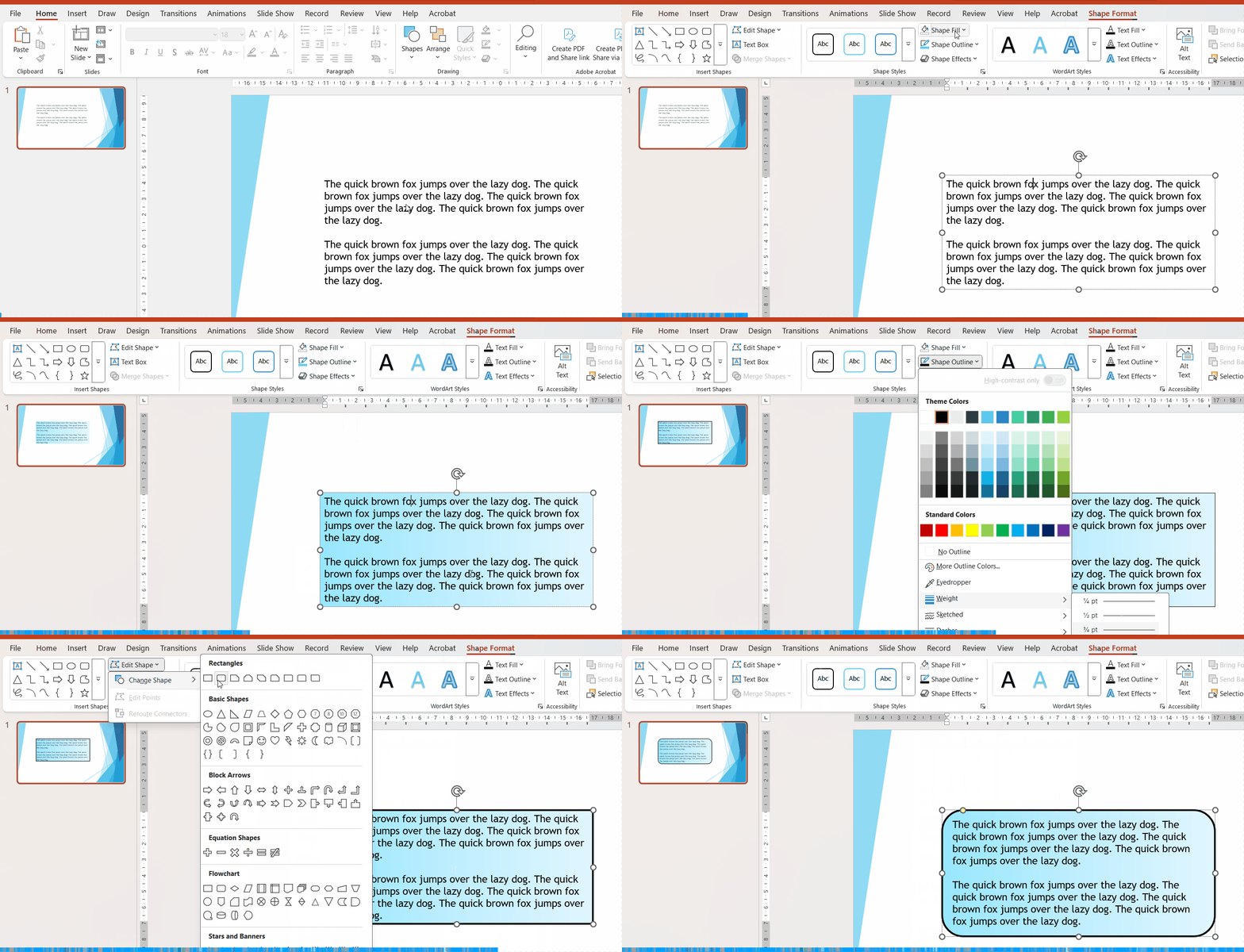
Select the text box.
Go to the Shape Format tab.
Modify options such as:
Fill Color: Change the background color of the text box.
Outline: Adjust the border style and thickness.
Effects: Apply shadows or reflections for emphasis.
Picture
4. Position the Text Box
Drag the text box to the desired location on the slide.
Use alignment guides or the Arrange options in the Shape Format tab for precise positioning.
For layered designs, use Bring Forward or Send Backward to control stacking order.
Best Practices
Keep text boxes aligned with your slide design for a professional look.
Use consistent fonts and colors across all text boxes.
Avoid clutter—use text boxes sparingly to maintain clarity.