Student MFA Help page

12 min read

This page provides guidance for students when using MFA, how you can set up MFA, and a FAQ (frequently asked questions).

You will be prompted to set up MFA when you access your student email account.
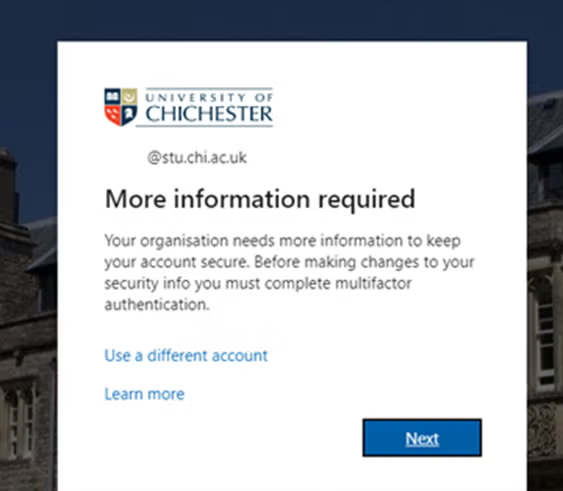
When you have authenticated using your password, Microsoft will ask you to provide additional information.

You can visit the following link at any time to set up or manage MFA:
https://mysignins.microsoft.com/security-info

You will be given an option of how you want to enrol with MFA, this will be a choice of using

  • Authenticator App
  • Registering a telephone number – for authentication by SMS or Phone Call

For step by step instructions for each – please view the help sections further down.

The video below provided by Microsoft explains the steps to get MFA set up on your account:

This page contains guidance on using an Authenticator App as a method for MFA.

There are various Authenticator Apps available on both the Apple App Store and Google Play Store. The University recommends using the Microsoft Authenticator App.

You may wish to use an Authenticator App which you already have set up on your device, which you are already familiar with. Whilst this should work, the University is unable to support all Authenticator Apps available, and therefore guidance and help may be limited.

The University would also advise against using an Authenticator App which has not been published by a reputable company (eg Microsoft, Google, etc)

  1. Download and install the Microsoft Authenticator App from the Google Play Store or Apple App Store.
  2. Once installed, enrol with MFA by visiting https://mysignins.microsoft.com/security-info. This is best to do from a web browser on a computer, but can also be done from your personal device.
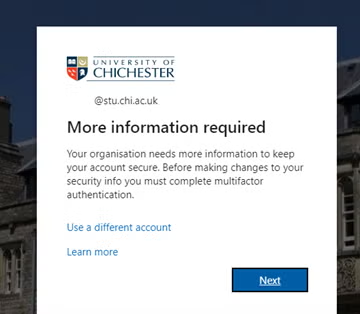
    You will be asked for your email address, followed by your password. At the next screen, click ‘Next’:  
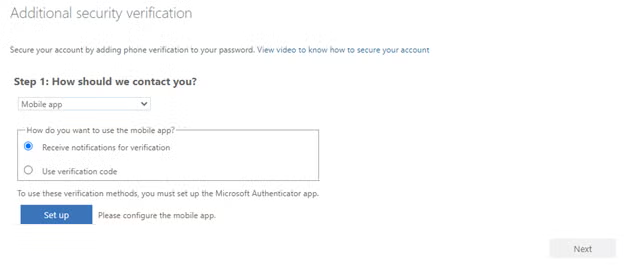
  3. You will be presented with the screen below where you will be given a choice of how to enrol. Choose ‘Mobile App’: 
    If you do not want to receive notifications when signing in, select ‘Use Verification Code’ Now select ‘Set Up’.
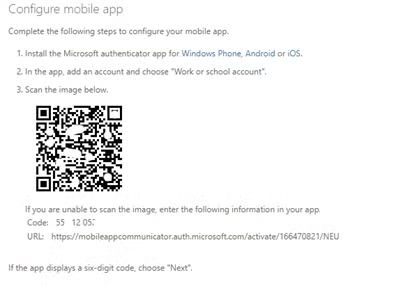
  4. Follow the instructions on the screen that follows, it will look similar to this: 
    Once you have completed the steps in your Authenticator App, click ‘Next’.
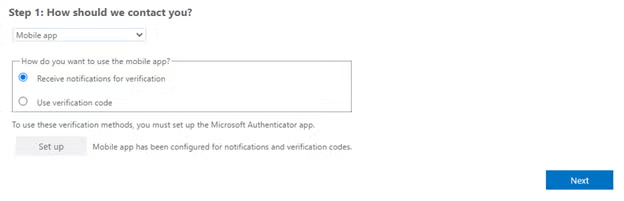
  5. The browser where you started the enrolment process should now look like below: 
    Select ‘Next’
  6. You will then be asked to authenticate using the app. Open this on your device, and select ‘Approve’ when prompted to authenticate.
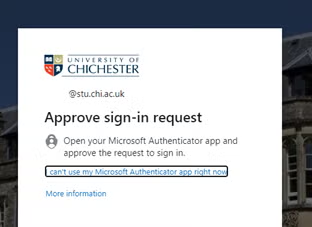
  7. You are now set up. When activated, you will be asked to authenticate using your authenticator app when presented with the following: 

There may be a time where you need to remove the Authenticator App and your information from MFA.

1. Navigate to https://mysignins.microsoft.com/security-info and authenticate with your account information.

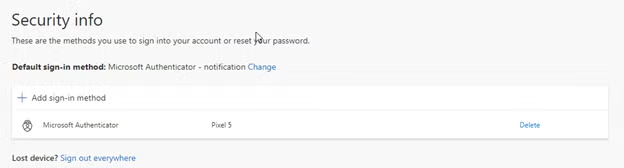
2. Your security information will be shown like in the image below: 

Choose ‘Delete’ next to the device you no longer wish to use. Review the guidance when prompted and select ‘Ok’.

3. Now you can navigate to your Authenticator app on your device, and remove your account.

Security Info

This page contains guidance on using a telephone number as a method for MFA.

We recommend using an Authenticator app for MFA, however we would also recommend registering a telephone number as a backup method, in case your Authenticator app becomes unavailable.

  1. Visit https://mysignins.microsoft.com/security-info. This is best to do from a web browser on a computer but can also be done from your personal device.
    You will be asked for your email address, followed by your password.
    If you have not yet registered, at the next screen, click ‘Next’ 
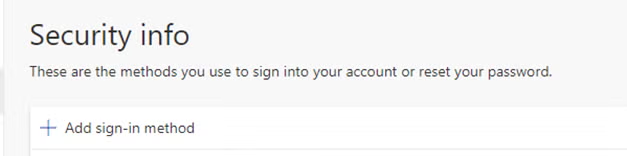
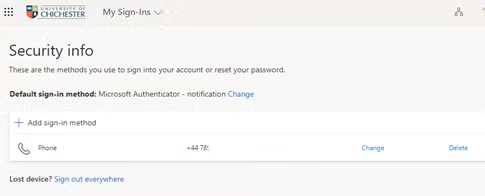
    Otherwise, if you see the following screen, click ‘Add sign-in method’ 
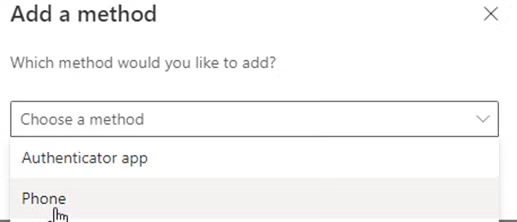
  2. Choose ‘Phone’ from the ‘Add a method’ drop down list 
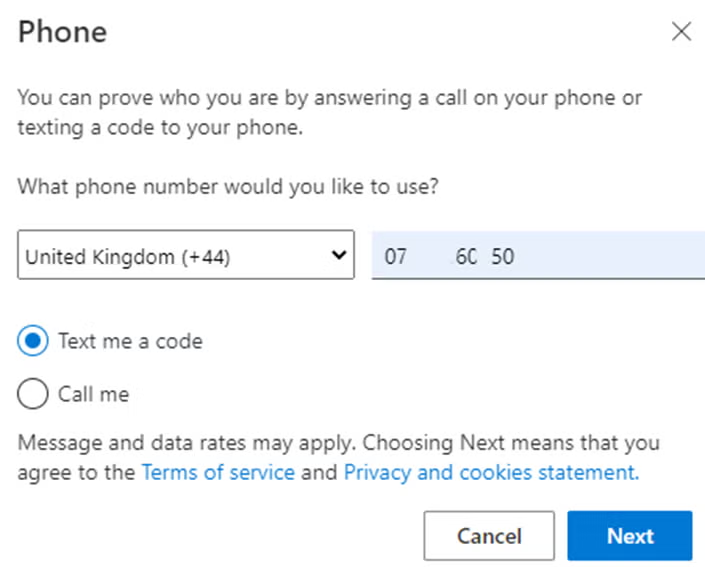
  3. From the next screen select an appropriate area code for where the number is located, enter your telephone number, followed by the way in which you would like to receive your code (or One Time Passcode). Click ‘Next’ when ready. 
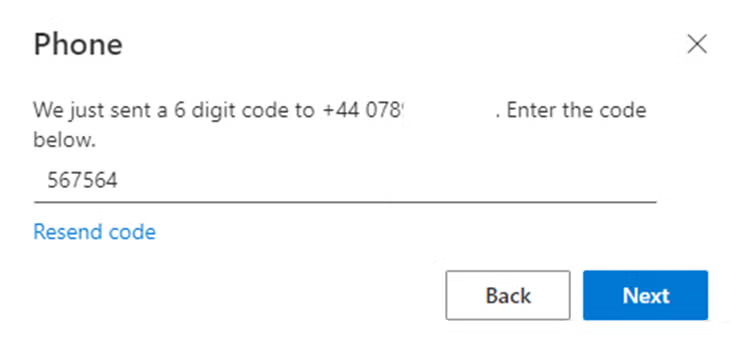
  4. You will be sent a 6 digit code to your phone number by either SMS or Phone call. Enter this code into your web browser like below 
    Click ‘Next’ can you should receive a message to say that your phone has been registered.
  5. If you are presented with a screen asking for an ‘App password’ you can skip this step by clicking ‘Done’
  6. You can now repeat the process to register a backup telephone number.

Most online threats come from external sources. When a University network account is accessed, it is often difficult to determine if the authentication attempt is genuine.

You will be prompted to complete MFA when accessing your University provided Office 365 email account, after you have authenticated with your password.

This will include access through a web browser and using Microsoft apps for iOS or Android, such as Outlook, Teams, or OneDrive.

Some University services that authenticate through Office 365 will require MFA. This includes services such as Careers, SAM or Resource Booker

Navigate to https://mysignins.microsoft.com/security-info and sign in using your University provided account information and password, and complete MFA.

From here you will be able to view your enrolled methods: 

MFA Methods

Navigate to https://mysignins.microsoft.com/security-info and sign in using your University account information, and complete MFA.

From the Security Info screen, select ‘Add sign-in method’ and follow the prompts to add a new sign-in method.

The University sign-in and MFA experience have been designed to work with assistive technologies for a range of device types. If you have a specific accessibility requirements which you wish to discuss in relation to MFA, please get in touch with the SIZ at help@chi.ac.uk.

For those that are visually impaired and rely on the accessibility options on your device, we would recommend registering for MFA by enrolling with a telephone number. This way you can receive the One Time Passcode (OTP) by a telephone call or by SMS. The instructions can be found earlier on this web page.

Should I enrol?

Yes. MFA will significantly improve the security of your student email account, and you will be required to enrol when you log in to you account if you have not already.

I have lost my enrolled methods, and cannot access my account to re-enrol

A member of our support staff will be able to reset your MFA which will allow you to re-enrol. Please get in touch with the SIZ by telephone (+44 1243 816000) or email (help@chi.ac.uk).

Can I use SMS or a Telephone Call as an enrolment method with MFA?

Yes, you can register a mobile number for SMS and Telephone Call, or alternatively a landline number for the Telephone Call method.

I have enrolled, when will I start to be asked for MFA?

You will be asked to sign in with MFA each time you log in to your student email account.

Was this article helpful?
Updated on January 13, 2026