You are here

Staff USB

If you use a USB stick on a Mac, then insert it in to a Windows machine on-campus you will be prompted to choose whether to encrypt or not to encrypt the USB.

  • If you choose not to encrypt you will still be able to open files on the USB and copy files from it, but you will not be able to save files or copy files to the USB. Your USB will still work on your Mac.
  • If you choose to encrypt the USB in a Windows 7 machine you will be able to save work to it but you will not be able to subsequently use the USB in your Mac.

Alternative Methods for Transporting Files

Alternative ways to move or access files include:

Mac Encryption

Mac OS X Lion also provides an option to encrypt USBs. However, if you encrypt a USB in this way, the USB will not work on any Windows PCs or on any previous Mac versions.

Note: we strongly advise you only use USB storage devices as a backup of your original files, please make sure you have a copy of the data on your H-drive or S-drive before you encrypt it

Note: and also never pause the encryption process once it has started

If you decide to encrypt your USB storage device on a Windows 7 machine, please be aware:

  • Windows 7 users will have full permissions (read and write)
  • Windows Vista / XP users will have limited permissions (read only). If you use XP/Vista, read the 'I have Windows XP / Windows Vista / Mac OS at home' FAQ before encrypting
  • The Mac operating system will not be able to access any device encrypted on Windows 7

To encrypt your device:

1. Insert your USB storage device into your Windows 7 machine

2. Step 2 depends on your location:

  • If you are on-campus, when the USB is detected, you will see the following prompt:

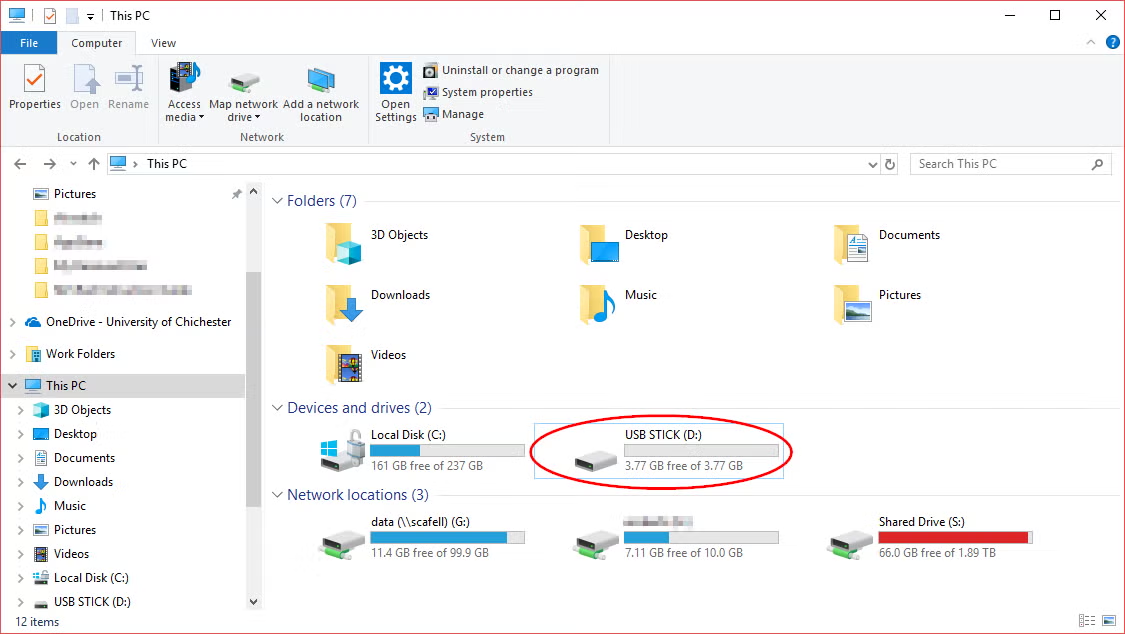
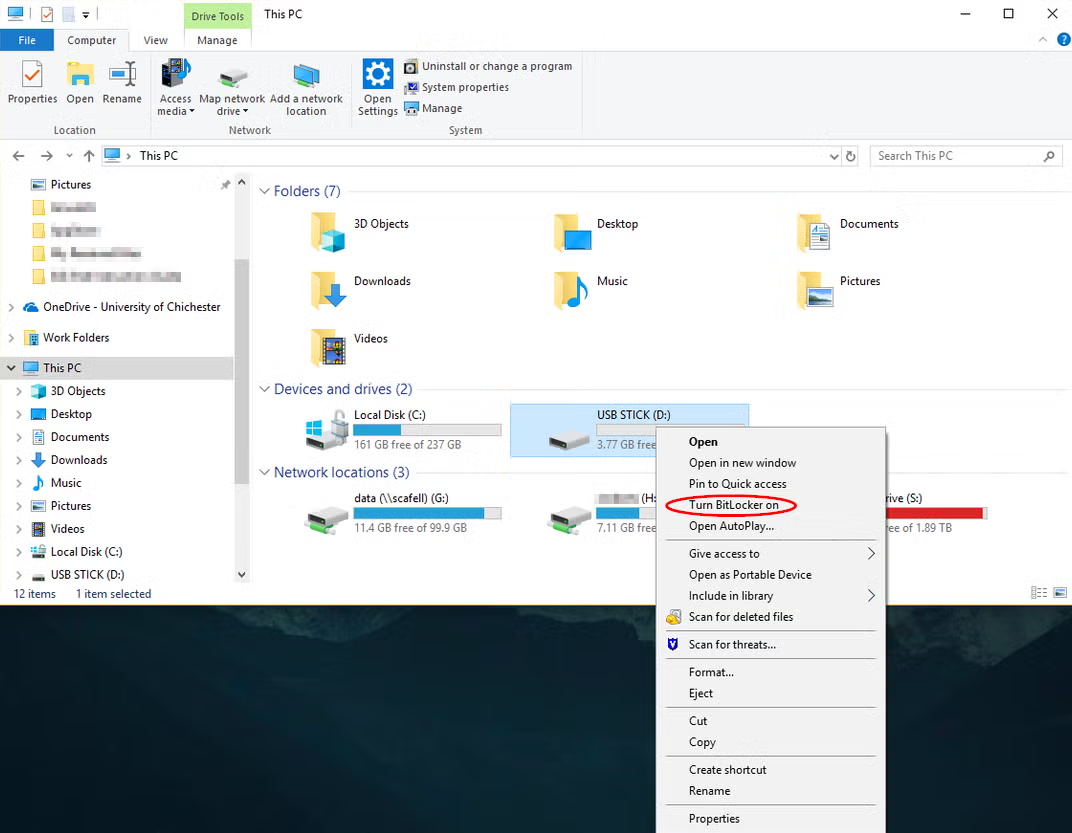
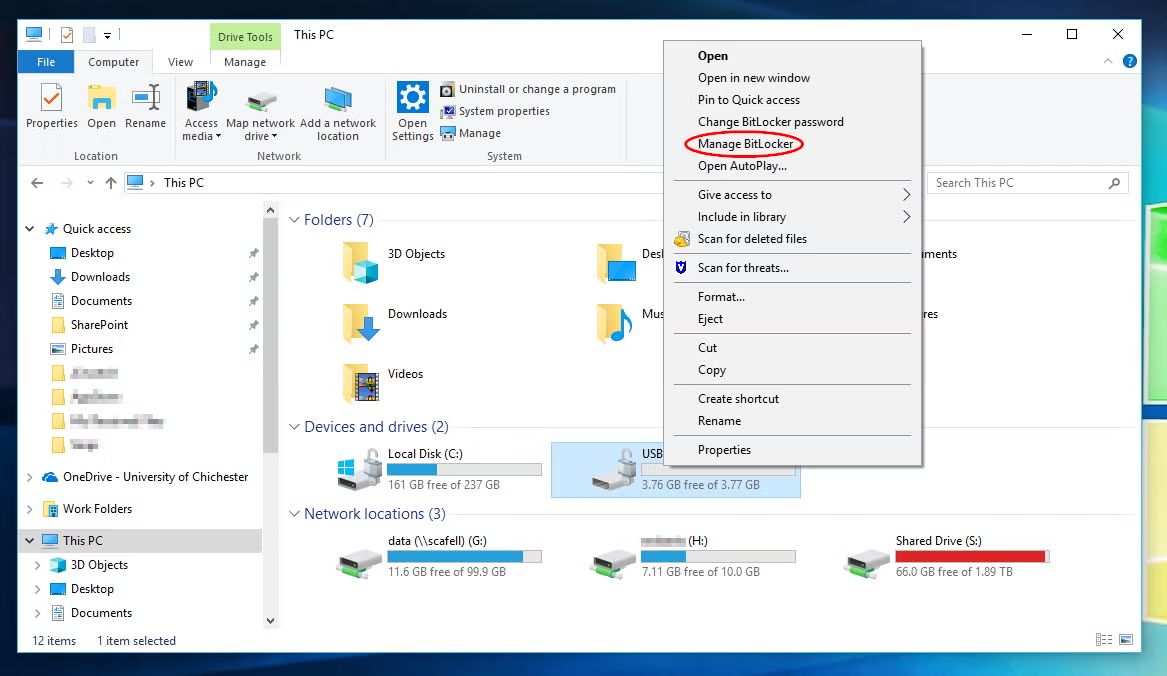
  • If you are off-campus, or were not prompted for encryption, then right click the device and choose 'Turn on BitLocker':

Note: you can only encrypt devices if you are using Windows 7 Enterprise or Ultimate (not Home Edition)

3. You will need to think of a secure password that follows the same rules as the new University password policy

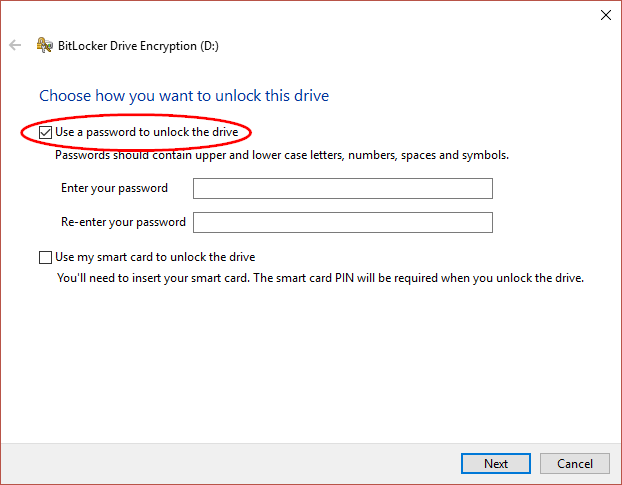
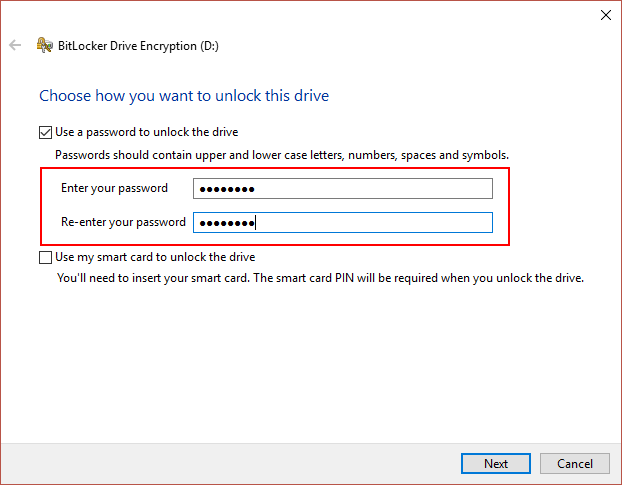
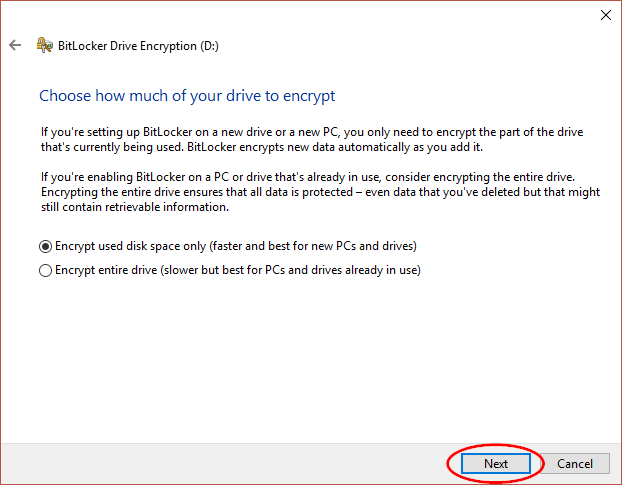
4. Tick the box 'Use a password to unlock the drive', input that password twice, and click 'Next'

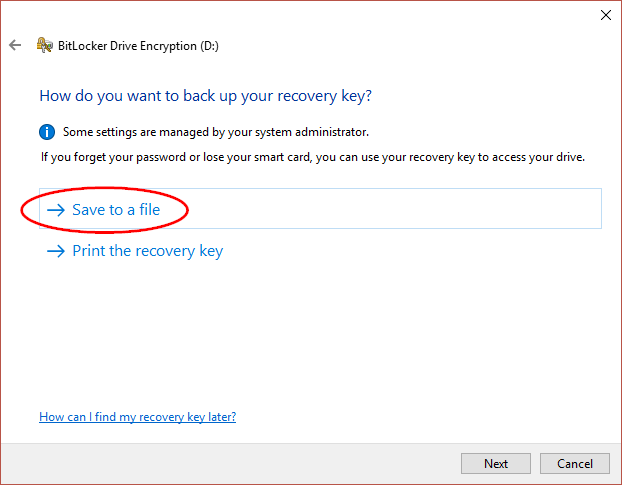
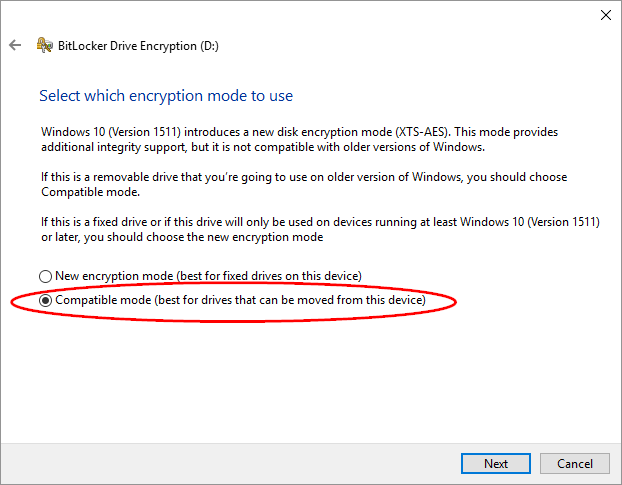
5. The next screen is for creating your recovery key which would be used if you forget your password in the future:

  • If you are using a University PC, then you don’t need to save a recovery key, because one is created automatically for you on our server, therefore you can click 'Next'
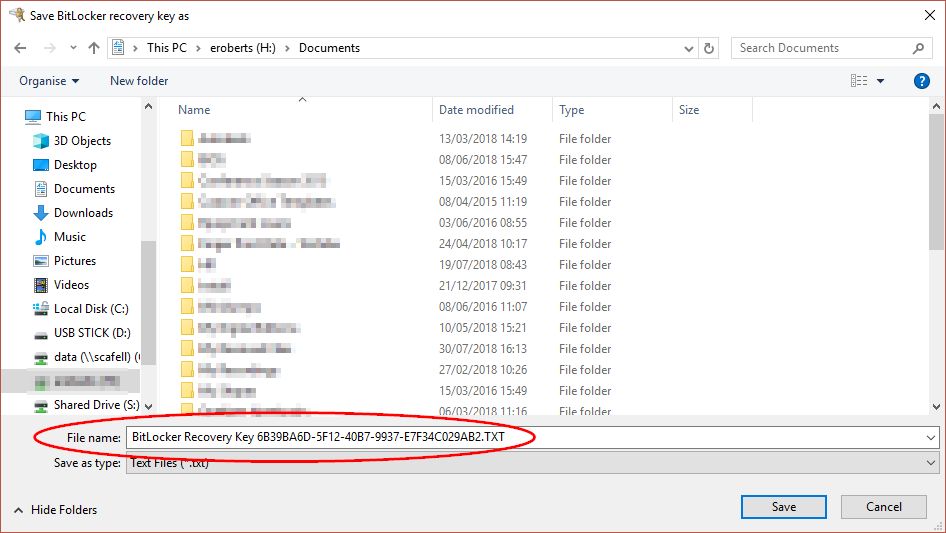
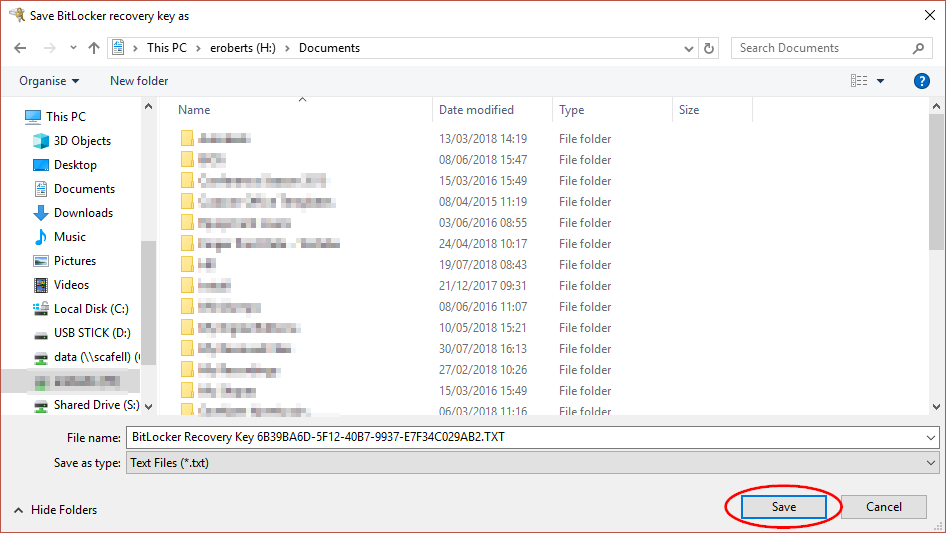
  • However, if you are using a personal copy of Windows 7 then you will have to click 'Save the recovery key to a file' which can be on any drive apart from the device you are encrypting, or you can 'Print the Recovery Key', then click 'Next'

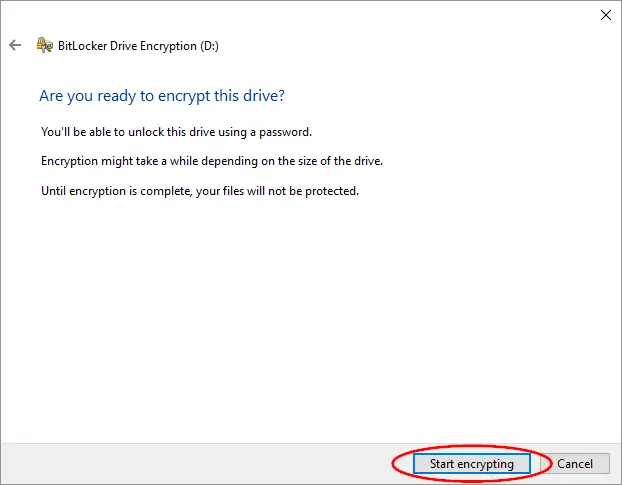
6. The next screen asks  'Are you ready to encrypt this drive?'

Before you start the encryption, workout roughly how long it will take to complete.

Some USB sticks are faster than others, therefore encryption times will vary depending on size and write speed.

However you can estimate how long it will take to encrypt using these examples:

  • A small 256 MB memory stick will typically take 5-10 mins
  • A 16 GB memory stick will take between 1-2 hours (regardless of whether it’s empty or full)
  • A large 1.3 TB USB hard drive may take up to 50 hours to encrypt

7. Only start the encryption process if you have enough time to let it finish completely.

Note: we strongly advise you only use USB storage devices as a backup of your original files, please make sure you have a copy of the data on your H-drive or S-drive before you encrypt it.

When you have read the text, and are ready to begin the device encryption click:

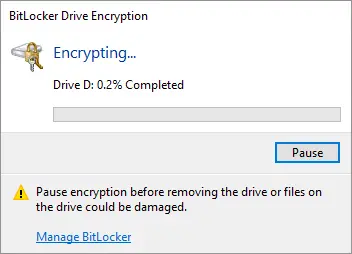
Note: it is strongly advised that you never pause the encryption process once it has started.

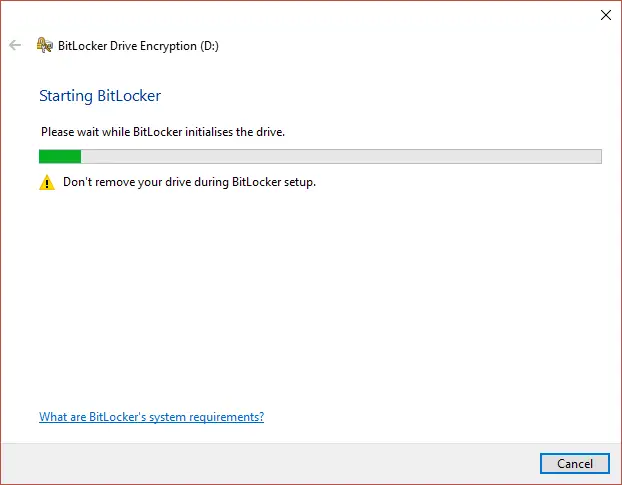
8. The progress bar will show you the percentage encrypted:

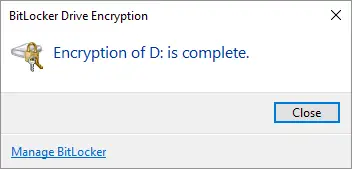
9. At the end of the encryption you will see the following:

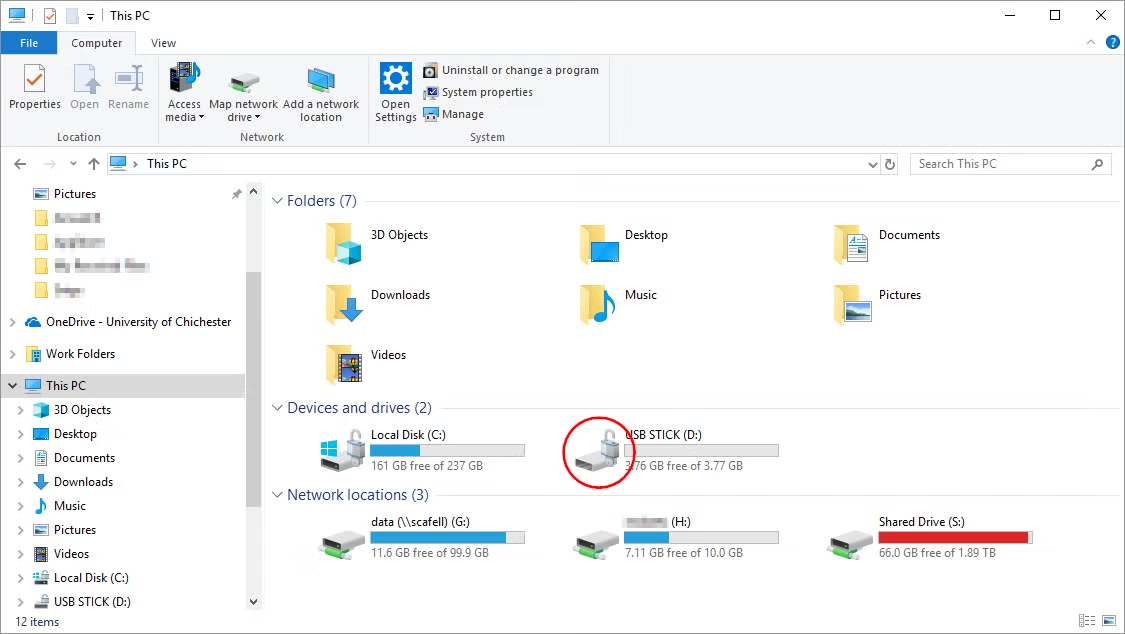
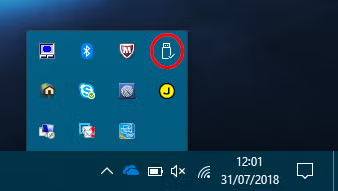
Now every time you input your USB storage device into a Windows machine you will need to enter your password to access the drive.

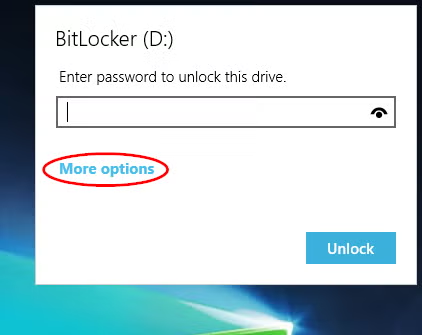
When you insert an encrypted USB storage device into a Windows machine you will be automatically prompted for the password.

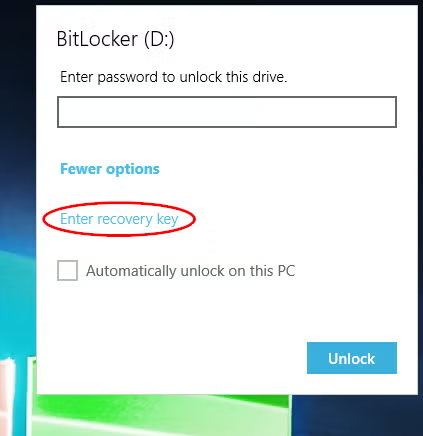
If your password does not work, or you have forgotten it, you will need to obtain the 'BitLocker Recovery Key', which you can do in two ways:

1. If your device was encrypted on a University Windows 7 machine we can provide the 'BitLocker Recovery Key' for you at the IT Service Desk. However you will need to visit in person, and prove you know the structure of your disk, before we unlock it for you.

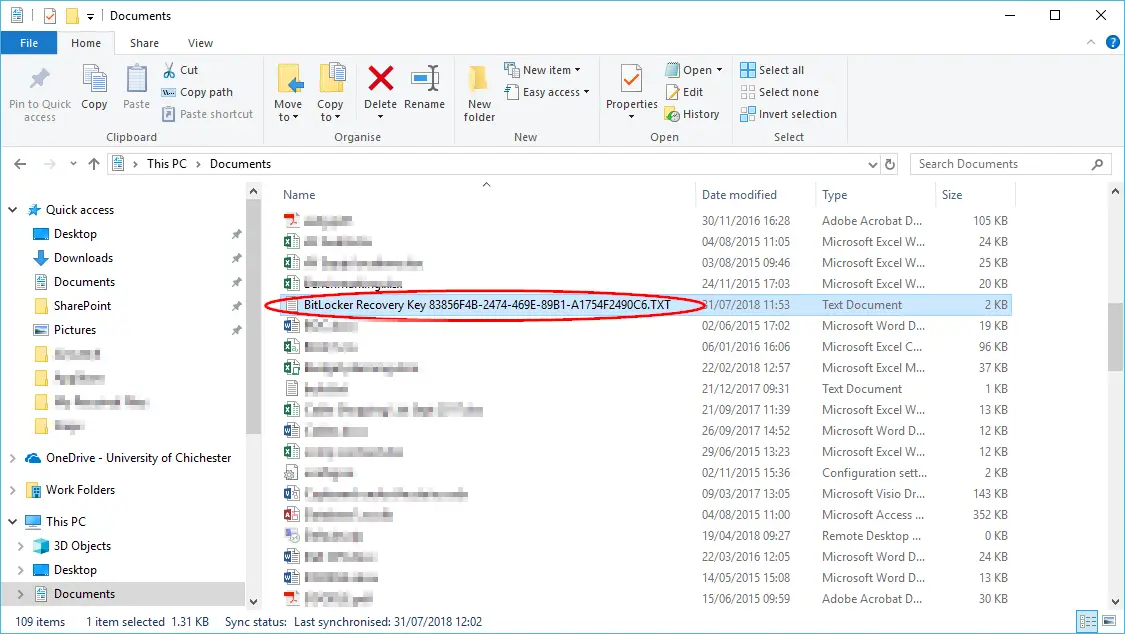
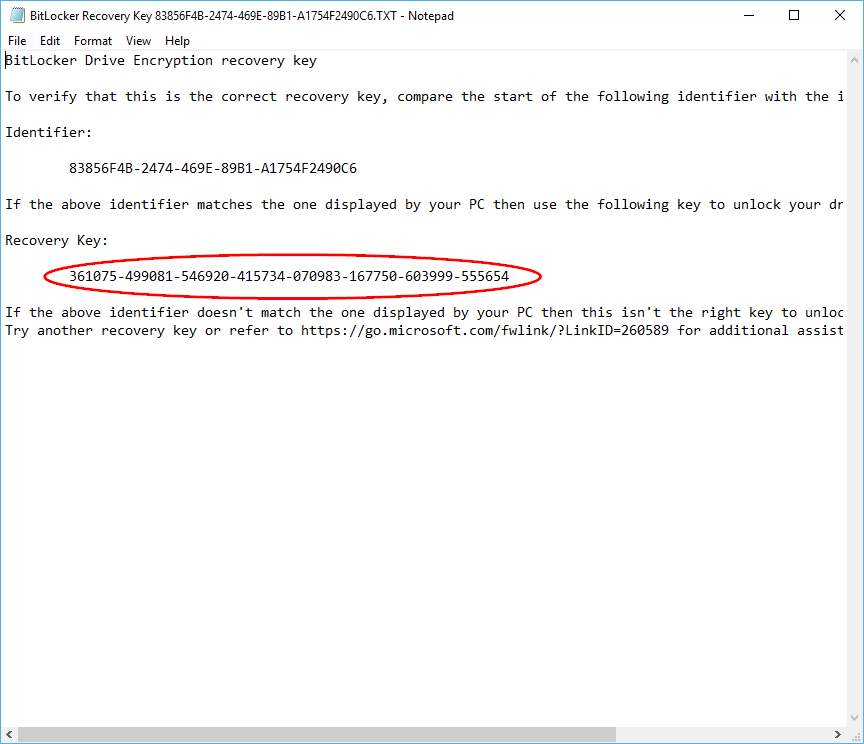
2. If you saved your recovery key yourself (e.g. BitLocker Recovery Key 0E10454B-340E-471B-BB55-069B30EF0FC4.txt) then you will have to open that text file to obtain your 'BitLocker Recovery Key'. Example: 509630-136796-639672-389917-216106-641223-465333-702097

Then, back at the password prompt screen, click 'I forgot my password' as shown below:

Next choose:

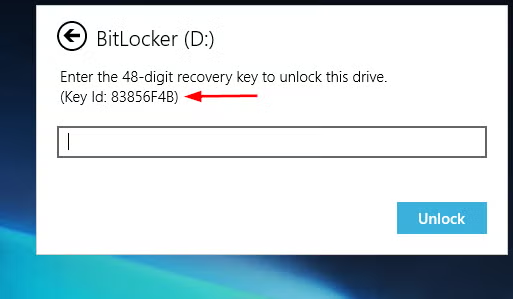
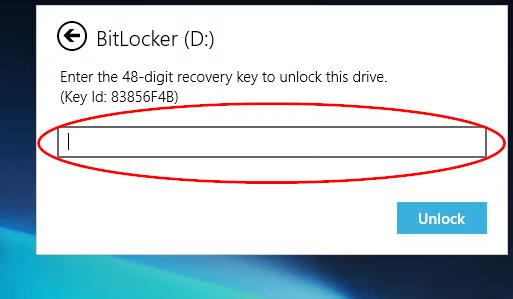
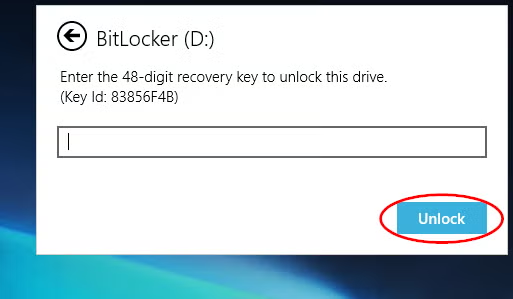
And you will need to type/paste the long 'BitLocker Recovery Key' you saved, printed or received from the IT Service Desk, and click 'Next'.

You will then have an option to click:

And finally set a new password by clicking:

When you insert an encrypted USB storage device into a Windows machine, you will be automatically prompted for the password:

If you input the password correctly you will then have access to the drive:

  • Windows 7 users will have full permissions (read and write)
  • Windows Vista/XP users will have limited permissions (read only)
  • The Mac operating system will not be able to access any device encrypted on Windows 7

Note: if you tick 'Automatically unlock on this computer from now on' on both your work and home machine, then your account won’t be prompted for the password on those machines again. However you will always get a password prompted on new machines, or if a different user tries to access that device.

Students are not currently required to encrypt their USB devices. However, an encryption message will appear if a student uses a USB device in a university PC that is logged in to by a member of staff (for example during a tutorial).

There are two options:

1. If the student just needs to be able to open a file: insert the USB device and choose 'don't encrypt' when the message appears

2. If the student needs to be able to save to the USB device: go to 'start menu' > click the arrow next to 'shut down' > choose 'switch user'. The student will then be able to log in and insert their USB device to use it as normal. The member of staff doesn't need to log out and can subsequently switch back to their log in.

Please note that encrypting a device will have implications on where and how you can use it.

Q. Do I have to encrypt my USB storage device?

A. No.  You only have to do this if you copy files from the University network onto the device. Copying files FROM the device will not force encryption. Please note, it is strongly recommended that you use the provided alternatives (remote access to H: and S: drives, e-mail, Moodle or SkyDrive) as these are more secure methods of file transport. Help for using these alternatives can be found either on the IT Help pages or through the IT Service Desk.

Q. I frequently do presentations around the world.  Will my encrypted device still work?

A. Any modern PC running Windows will be able to read the content on your USB device. Therefore, you will be able to present your work as normal.

Q. I have Windows XP/Windows Vista/Mac OS at home. How does encryption effect me?

A. If you encrypt your USB device then it will become read-only on XP/Vista, meaning you can open files and copy files off the device, but you won't be able to save files or copy files onto the device. If you have Windows 7 then you will be able to read and write to the device as normal.

If you will be using your encrypted device on Windows XP/Vista make sure the file system of your device is FAT or FAT32 before encrypting it. If the file system is NTFS and you encrypt it, then it will work in Windows 7 but not in XP/Vista at all. You can check the file system of your device by right-clicking it in "Computer" eg. the E-drive, and choosing "Properties".

For Mac OS users see 'Encrypted USBs and Apple Macs'.

Q. Our department uses an external USB hard drive. Will it also need encrypting?

A. Yes. Whoever is responsible for a University external hard drive, must ensure it is encrypted as soon possible. Failure to do so will mean they are breaching the University security policy, and therefore could be personally responsible for any loss of data. 

Q. I have Office 2003 at home. Will this cause a problem?

A. Not in relation to the encryption of USB devices. The latest version of Office is available for staff to take home and install, free of charge, and we recommend you do this to ensure complete compatibility with the University environment.  The DVDs are available from at the LRC reception desks on both sites. You will need your staff card to borrow a DVD.

Q. Will this change affect any non-USB storage medium (such as CDs and DVDs)?

A. No. Although the auditors’ recommendation was to disable such devices, we are not changing how CD/DVD devices work.

Q. I have an iPhone. Will I have to encrypt it when I plug it in?

A. No. You won’t be able to copy files onto the iPhone from the University network so you will therefore not be asked to encrypt it.

Q. Why do USBs have to be encrypted?

A. The auditors believe that there is a real security risk associated with these devices, as they are easily lost, corrupted, and could contain either 'personal' data (covered by the Data Protection Act) or other data the University would not wish to find in the public domain.  They therefore asked us to “enforce strong encryption” if we could not disable the use of such devices.  The latest version of or Data and Systems Security Policy reflects this requirement.

GOLF